 EseeCloud Help Center
User Management
NVR default username and password, password and username length limits, how to reset a forgotten login password, and the maximum number of user accounts.
Frequently asked questions about NVR user accounts, passwords, and account limits.
Device default username and password
Username: admin
Password: empty (leave blank, no input required)
Password length when adding a password on the recorder
No more than 10 English letters. The password can be a combination of English letters and numbers.
Forgot the NVR login password?
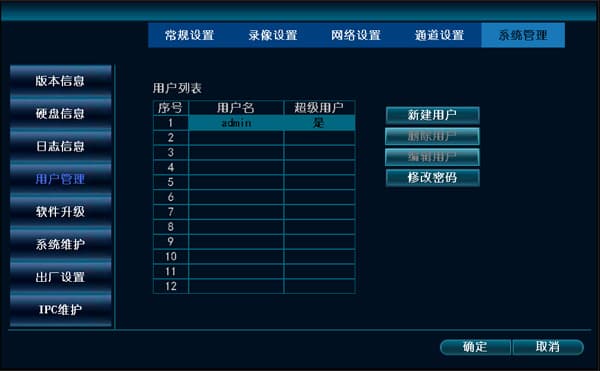
- Tell us the complete date and time shown on the recorder — year, month, day, hour, minute, and second — or take a photo and send it to us. We will give you a temporary password. Use this password to log in to the recorder, then go to System Settings → User Management → Change Password. Enter this temporary password as the old password, leave the new password blank, and click OK. Once done, the recorder will restore factory defaults and have no password.
- Restore factory settings via remote assistance. Use a network cable to connect the recorder to a router that can access the internet, install the PC client software on a computer under that router, open the software, and search for the recorder's IP address. On this computer, log in to QQ, then send a remote assistance request to technical support.
Are there limits on the characters and length of the NVR username?
The username, whether letters or numbers, can be set to a maximum of 10 characters.
What is the maximum number of users that can be added in NVR user management?
A maximum of 12 users can be added.