 EseeCloud Help Center
IPC Router FAQ
IPC Router FAQ — settings, one-key matching code, wireless repeater setup, upgrading the NVR/IPC/router, matching-code failures, and multi-router channel interference.
Frequently asked questions about the IPC Router, which lets a wired NVR system work like a wireless one for 2.4G WiFi IP cameras.
For full product specifications and installation, see the IPC Router Manual.
IPC Router settings
-
The IPC Router has five LED indicators in total. The right one is the wired network light — when it is on, the IPC Router is connected to the wired network. The four lights on the left indicate the number of wireless cameras connected; when all 4 cameras are connected, all 4 indicators are on.
-
Right-click the mouse and choose Video Management. Double-click the IPC Router in the search results of the Video Management page to enter the IPC Router management interface, where you can view the current IPC Router information and change the IPC Router channel.
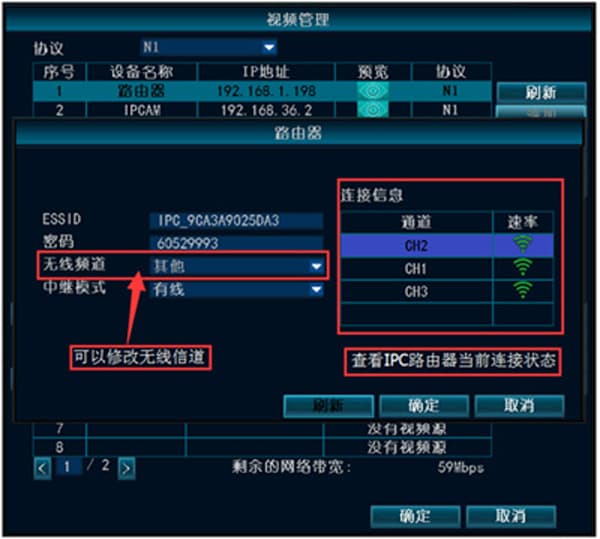
One-key matching code
Use a network cable to connect the IPC Router and the wireless IPC, and power them on. When you need to match the code for several wireless cameras at once, you can connect them through a switch. Lightly press the button on the IPC Router's tail cable for 1 second to start matching the code; a voice prompt plays at the same time. When the voice indicates that matching succeeded, the camera has been matched successfully. (Holding the IPC Router's tail-cable button for 5 seconds restores factory settings.)
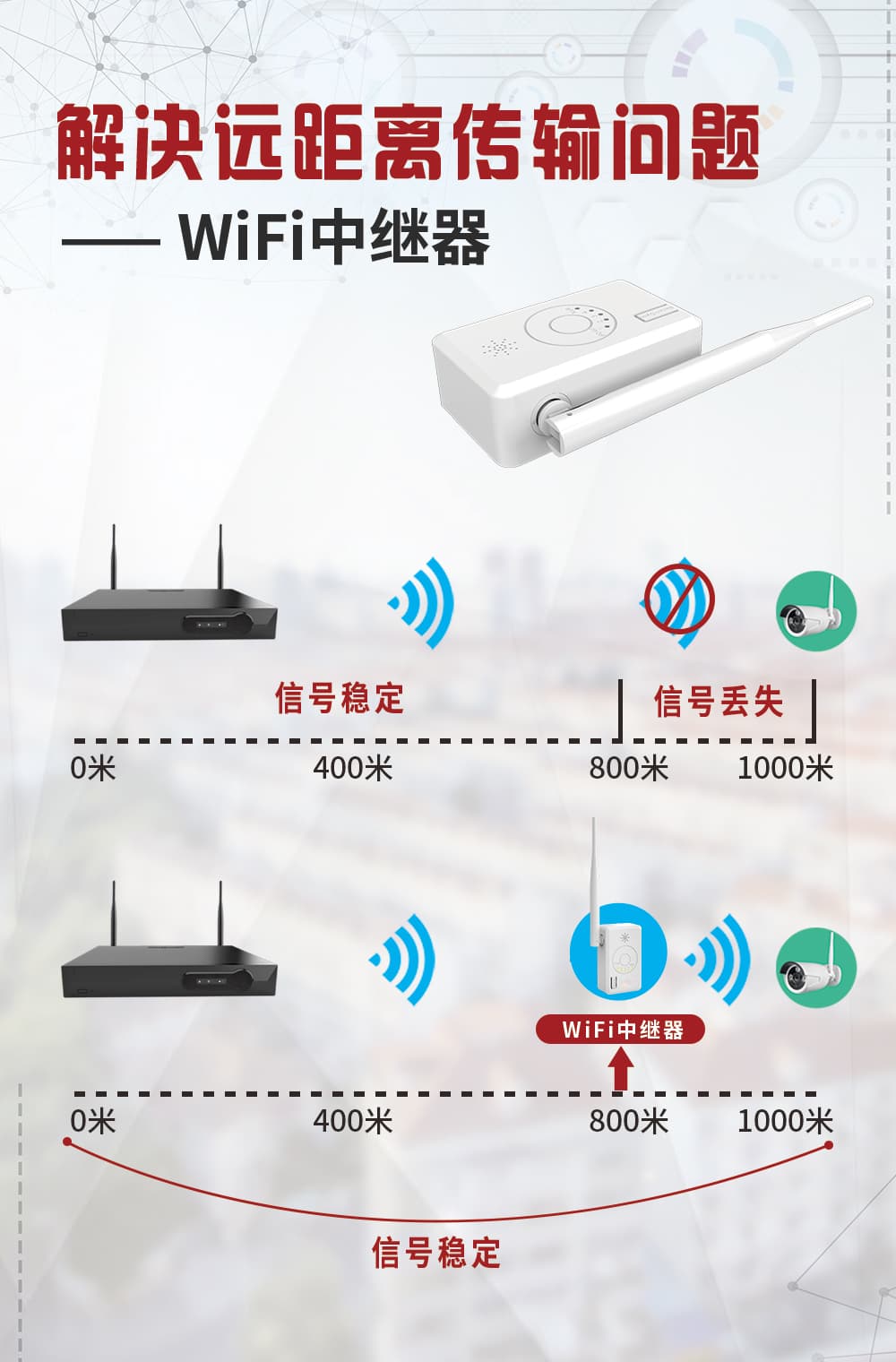
Wireless repeater function setup
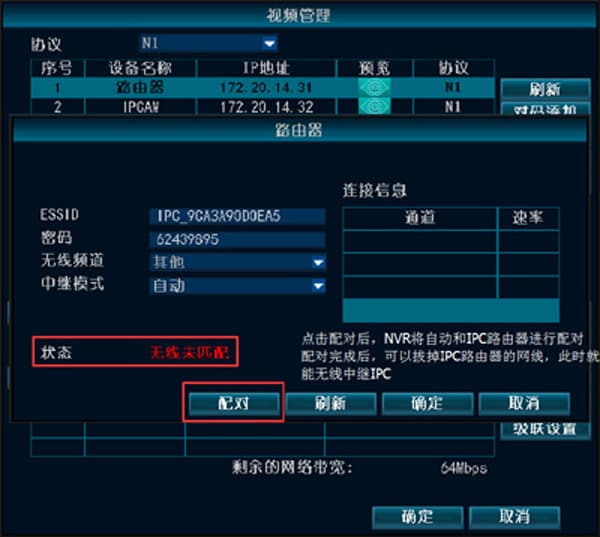
1. After the wireless IPC matches the code to the IPC Router, if it is connected to a wireless NVR, first connect the IPC Router and the NVR to the same LAN. You can then set the IPC Router to wireless repeater mode to enable the repeater function.
In the Video Management search list, double-click "router" and click the pair button. (With the network cable plugged in it is a wired repeater; with the cable unplugged it is a wireless repeater.)
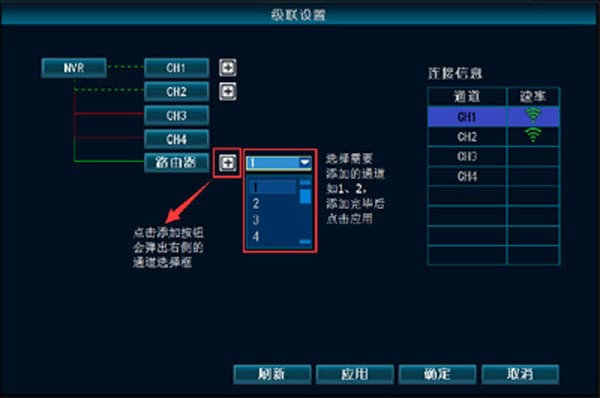
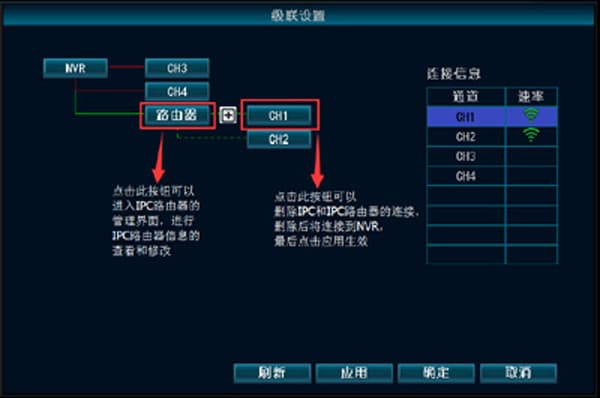
2. First match the code between the NVR and the IPC, then configure it on the cascade settings page.
Connect the IPC Router and the NVR to the same LAN, and place the IPC that needs to connect to the IPC Router near the NVR. Open the cascade settings page (right-click → Video Management → Cascade Settings), then click the + button on the interface to add the IPC behind the IPC Router.
How do I upgrade the NVR, IPC, and IPC Router?
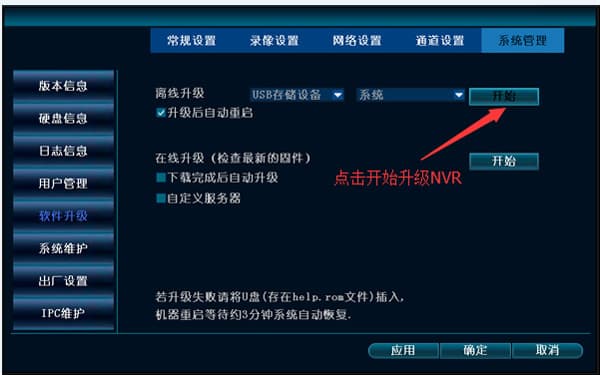
1. How to upgrade the NVR (USB drive format: FAT32)
Copy all the upgrade files to the root directory of a USB drive, plug it into the NVR's USB port, right-click, and choose System Settings → System Management → Software Upgrade → Start in order. (If the upgrade does not start smoothly, re-plug the USB drive, confirm the files are correct, and try again.)
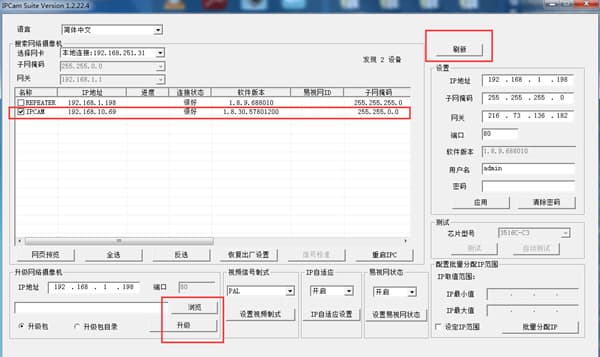
2. How to upgrade the IPC
Use the IPCamSuite IP search tool to upgrade the IPCAM.
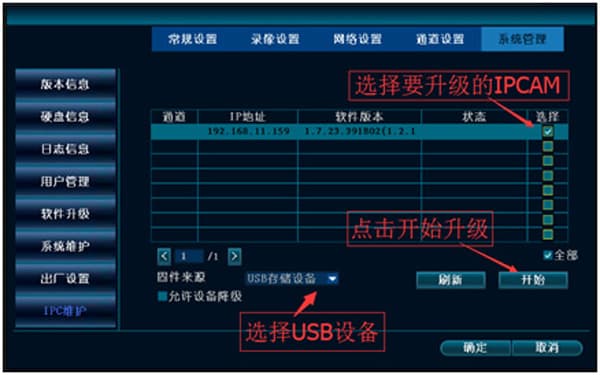
After the IPC is successfully added to the NVR, you can upgrade it on the NVR later (USB drive format: FAT32). Right-click and choose System Settings → System Management → IPC Maintenance in order.
3. How to upgrade the IPC Router
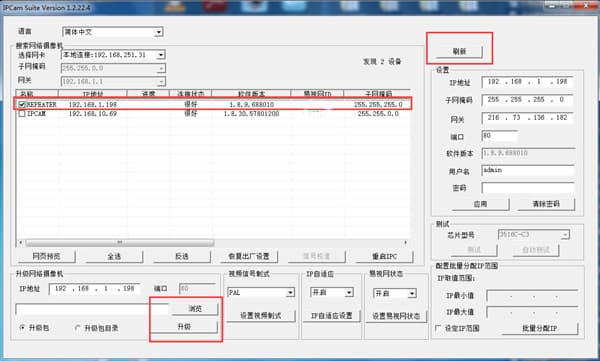
Use the IPCamSuite IP search tool to upgrade. Select the IPC Router (REPEATER), choose the correct upgrade package file, and click Upgrade.
The wireless IPC fails to match the code when connected to the IPC Router by cable?
- Check the device's power, whether the indicator lights are normal, and whether the connecting network cable is normal.
- When several IPCs match the code at the same time, check whether the connecting switch is normal.
- Check the operation method — did you lightly press for 3 seconds to start matching the code?
- Check whether the IPC Router's match button has a problem — does holding it for 5 seconds restore factory settings?
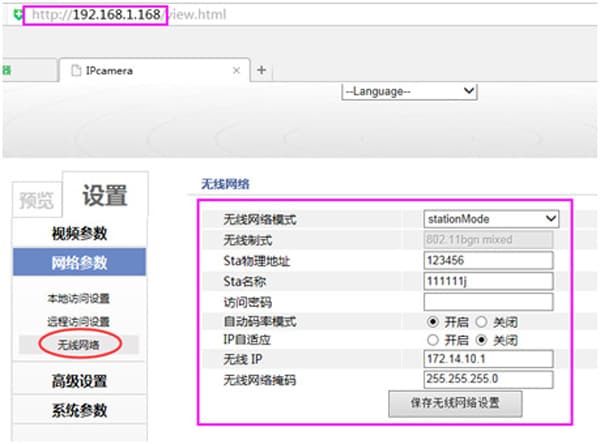
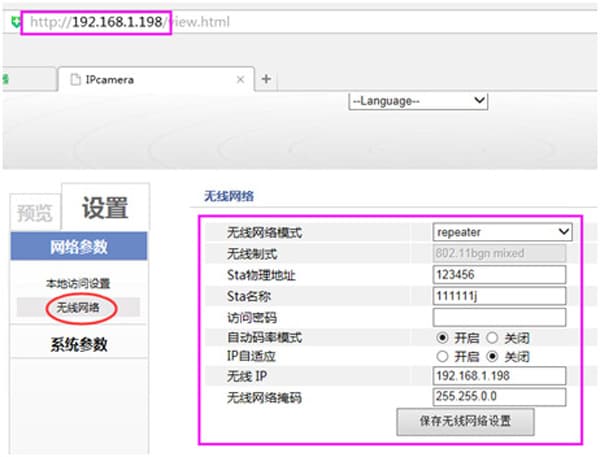
- The wireless IPC and IPC Router hardware or wireless module may be faulty. Log in to the device's IP address through a web browser and check whether there is any wireless network information.
Several IPC Routers are installed in the same place, the IPC is very close to the IPC Router (only about ten meters), but the image is very laggy and it often goes offline and reconnects — what is happening?
This is caused by several IPC Routers being on the same channel. There are 4 non-interfering wireless channels in total: 1, 6, 11, and others. If four IPC Routers are installed in the same place, set them to channels 1, 6, 11, and others respectively.
The channel setup principle is that IPC Routers on the same channel should be kept as far apart as possible and should not overlap. Using IPC Routers in crowded areas is not recommended.
General
VR CAM general FAQ — maximum supported card capacity, daily storage usage, abnormal card prompt, upgrade failure, and missing alarm push.
Wireless Kit
Wireless camera kit FAQ — wireless cascade, network, remote viewing, audio, video, recording and playback, logo, output display, protocol, alarms, wireless issues, and more.