 EseeCloud Help Center
Remote Setup
Frequently asked questions about NVR remote setup, EseeNet ID online status, port and DNS settings, and remote viewing over the WAN.
Frequently asked questions about NVR remote setup and connectivity.
How do I set up remote access on an NVR?
-
Use a network cable that can access the internet normally and connect it to the network port on the back of the NVR (very important).
-
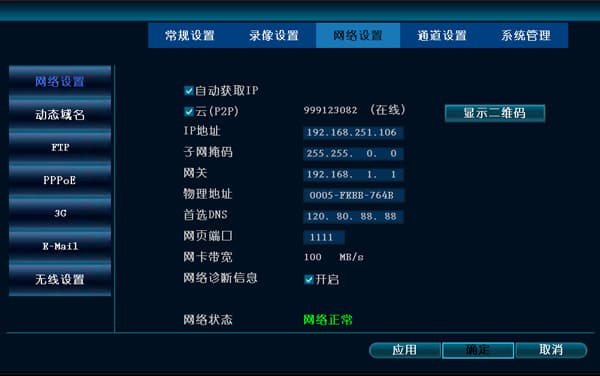
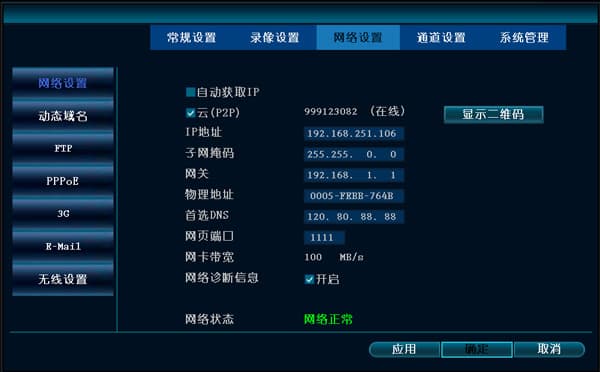
Right-click the mouse → System Settings → Network Settings, tick the checkbox in front of Obtain IP automatically (DHCP), click OK, exit the main menu, restart the recorder, and wait about 2 minutes. The EseeNet ID should then be obtained and show as online. After that, untick the Obtain IP automatically (DHCP) checkbox and click OK.
-
If the ID still shows offline or shows as
---after the steps above, change the web port to1111, set the preferred DNS to8.8.8.8or the preferred DNS to114.114.114.114(China Telecom), and click OK. Restart the recorder and wait about 2 minutes. -
Remote monitoring from a PC: WAN login (that is, the external network — any network that is not behind the same router is called a WAN, for example China Telecom, China Mobile, China Unicom, and CRCC networks).
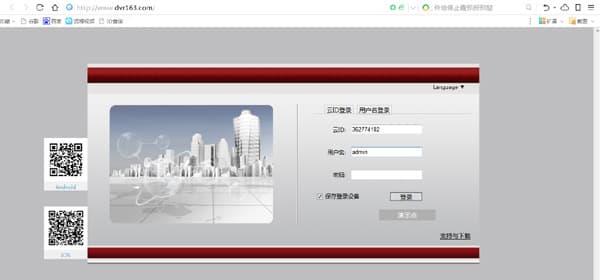
On any internet-connected PC on the external network, open the IE browser and enter the URL www.dvr163.com. Use the EseeNet ID as the device ID, admin as the user name, and leave the password empty to log in.
Why can't I log in to EseeNet after a few days?
-
Click the demo case to check whether it can log in. If it can, the server is fine.
-
Restart the recorder.
-
Enter the router and check whether UPnP has mapped the recorder's ports. If it has not, you need to restart the router. (Note that some routers do not display the UPnP port mapping list.)
I got an ID but can't log in, and the HTTP port can't be pinged?
An NVR behind multiple routers on the LAN can obtain an ID but cannot log in. First enable the UPnP function on the router that connects to the external network, disable the UPnP function on the other routers, and then restart the NVR recorder and the router that connects to the external network. If you still cannot log in, confirm whether the router's security settings block external (WAN) access.
The ID shows offline in Network Settings, but I can still view the video remotely?
-
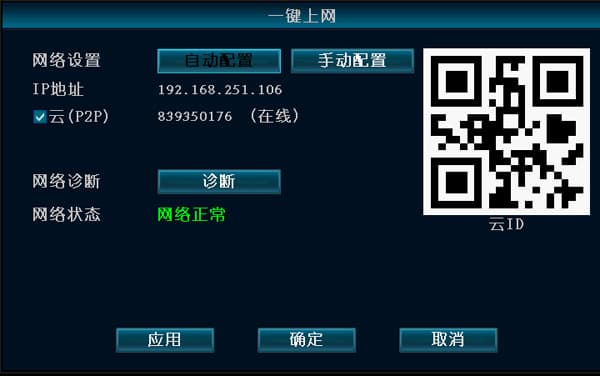
In the main menu, click One-Key Internet Access; you can see that EseeNet (P2P) is already ticked and the ID shows as online.
-
In General Settings, the option to display the EseeNet ID during preview is not enabled — tick that option.