
LogoEseeCloud Help Center
HomepageDocumentation
Help Center
Functionality
Technical Support
Pre-Sales Issues
FAQs
VR CAM
IPC Router FAQ
Wireless Kit
IPC
NVR
NetworkRemote SetupAudioVideoUser ManagementBasic OperationsRecording & PlaybackBoot Logo SettingsOutput DisplayProtocol IntegrationAlarm & E-Mail NotificationsWireless IssuesGeneral
DVR
Mobile App FAQ
Other FAQs
User Manual
Help CenterFAQsNVR

Audio

How to enable audio on the NVR and IPC by setting the encoding mode to audio-video mixed.

Frequently asked questions about audio settings on the NVR and IP cameras.

Audio settings

  1. The audio/video mode is not enabled on the NVR and the camera. On the NVR, go to System Settings → Channel Settings → Encoding Settings, select the channel where the corresponding audio IPC is located, and set the encoding mode to audio-video mixed.
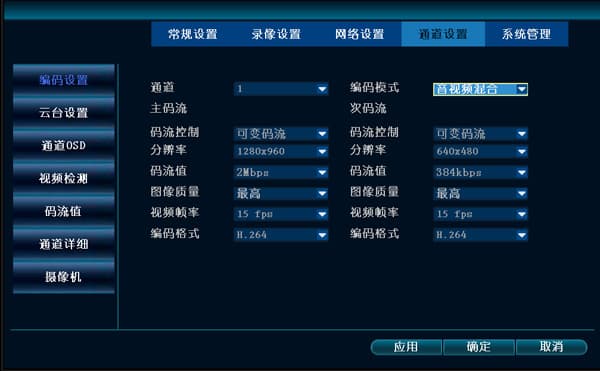
NVR encoding settings with the encoding mode set to audio-video mixed
  1. Log in to the IPC web interface, go to Settings → Video Parameters → Video Settings → Encoding Type, and select audio-video.
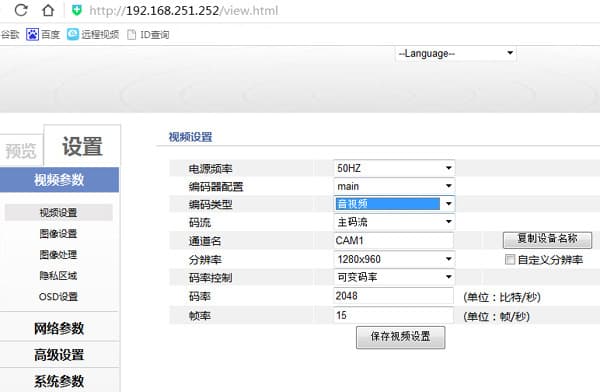
IPC web video settings with the encoding type set to audio-video

Remote Setup

Frequently asked questions about NVR remote setup, EseeNet ID online status, port and DNS settings, and remote viewing over the WAN.

Video

Troubleshooting intermittent or missing video images after adding cameras to the NVR.

Table of Contents

Audio settings