 EseeCloud Help Center
Network
How to set the NVR IP, connect over the LAN or WAN, and troubleshoot blank screens and zeroed network parameters.
Frequently asked questions about NVR network setup and connectivity.
How do I set the NVR's IP?
-
Plug a network cable into the NVR's network port (the indicator blinks) → right-click the mouse and choose System Settings → Network Settings → enter the IP manually (for example: IP address 192.168.251.106, subnet mask 255.255.0.0, Preferred DNS 120.80.88.88 (China Unicom),
or Preferred DNS 114.114.114.114 (China Telecom); the default web port is 80.
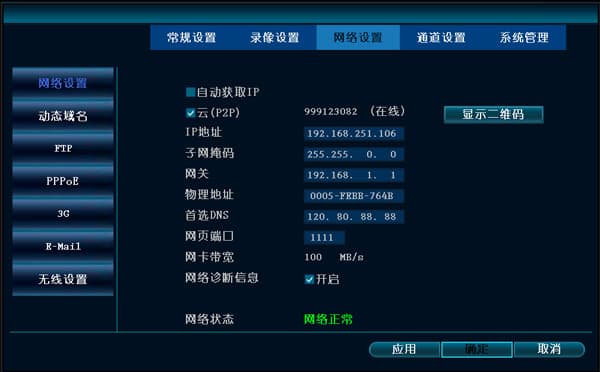
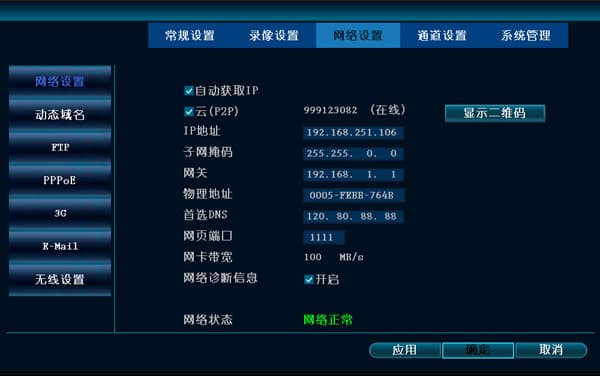
- Plug a network cable into the NVR's network port (the indicator blinks) → right-click the mouse and choose System Settings → Network Settings → check "Obtain IP automatically".
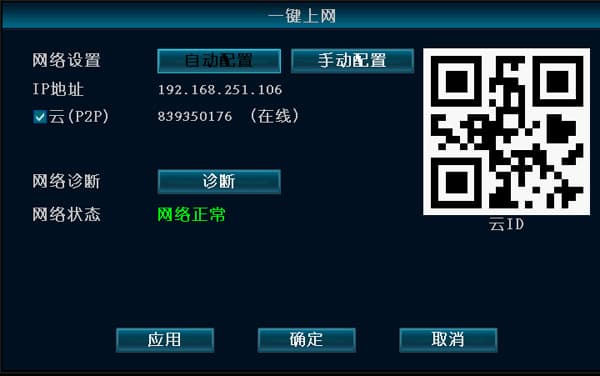
- Plug a network cable into the NVR's network port (the indicator blinks) → right-click the mouse and choose "One-Key Network".
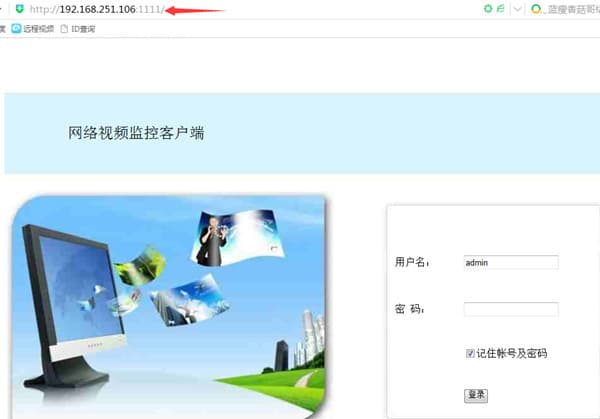
LAN connection (log in by entering the IP address in a browser)
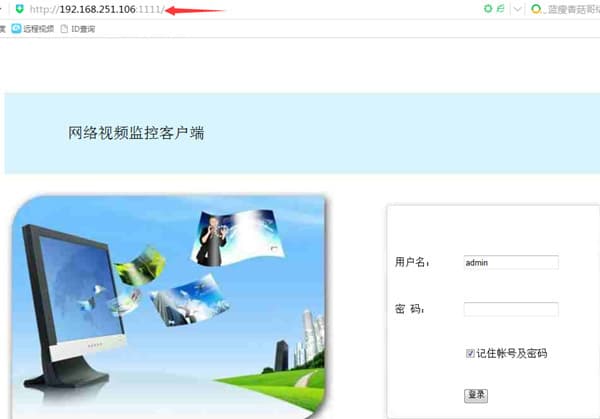
- Use the port set in the NVR's network settings. For example, if the NVR's IP address is 192.168.251.106 and the port is 1111, then enter http://192.168.251.106:1111 in the browser.
-
If the computer and the NVR are not on the same subnet, network access is not possible, and you need to set them to the same subnet.
How to check the computer's IP: Start → Control Panel → Network and Sharing Center → Local Area Connection → Details.
(Use the subnet mask to determine whether the addresses are on the same subnet. For example, with subnet mask 255.255.255.0, IP address 192.168.1.20 and IP address 192.168.1.30 are on the same subnet.)
-
IE-type browsers need to install a plug-in automatically. 360-type security tools will block the installation of this legitimate plug-in, so please close 360 Total Security and 360 Antivirus and try again. We also recommend switching to a different security product, such as Kingsoft PC Doctor and Kingsoft Antivirus.
The device is accessible from within the LAN: the CMS PC client works, but the IE browser cannot access it.
- If the device's port has been changed, you need to access it with the IP + port number. For example, if the device IP is 192.168.251.106 and the web port is 1111, then enter 192.168.251.106:1111 in the IE browser to access it.
- Customize the security level in IE's Internet options: Tools → Internet Options → Security → Custom Level, and enable all the "ActiveX" plug-in prompts that were disabled.
WAN connection (log in with the ID at www.dvr163.com in a browser)
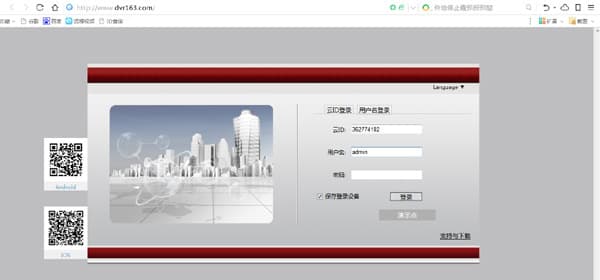
Why can't I connect when logging in with the EseeNet ID?
-
The NVR firmware may be too old. For an NVR, confirm it is V1.8.2.B16 or later; for a DNVR, confirm it is V1.8.1.B14 or later.
-
The carrier blocks P2P traversal, in which case the connection relies on the central server to relay traffic. This is generally less efficient and has a lower connection success rate.
-
If you are using the 360 browser, switch to the standard IE browser that comes with Windows and try again.
-
IE-type browsers need to install a plug-in automatically. 360-type security tools will block the installation of this legitimate plug-in, so please close 360 Total Security and 360 Antivirus and try again. We also recommend switching to a different security product, such as Kingsoft PC Doctor and Kingsoft Antivirus.
After connecting the network cable to the NVR, the MAC address, IP address, gateway, etc. are all 0
The firmware is too old and must be upgraded.
Why can the CMS connect successfully, but the preview has no image (black screen)?
-
Antivirus software, a firewall, or similar may be blocking the video data. Please check and close the antivirus software, firewall, etc.
-
Check whether both the main stream and the sub stream have no image. If the main stream has an image but the sub stream does not, you can restore factory settings on the NVR.
-
It may be caused by a problem with the graphics card driver. Go to Start → Run, type dxdiag, and check the Display and DirectX entries to see whether they are all shown as Enabled. If any are shown as Not Enabled, you need to download and install the graphics card driver.
-
The web port 80 may be occupied; change the web port to 1111.
-
If the picture is a black screen on the mobile APP, the CMS PC client, and the web page alike, the router may be blocking data transmission.
NVR
NVR (network video recorder) FAQ — network, remote viewing, audio, video, user management, basic operations, recording and playback, logo, output display, protocol integration, alarms, and general questions.
Remote Setup
Frequently asked questions about NVR remote setup, EseeNet ID online status, port and DNS settings, and remote viewing over the WAN.