 EseeCloud Help Center
Protocol Integration
How to connect third-party IPCs to an NVR via ONVIF and troubleshoot integration issues.
Frequently asked questions about connecting third-party IPCs to an NVR and resolving protocol integration problems.
Which third-party IPCs can the NVR connect to?
Any camera that supports the standard ONVIF protocol.
The NVR fails to connect to a camera from another manufacturer
- Confirm whether the IPC you are adding supports the ONVIF protocol, and verify the IPC's ONVIF port.
- Confirm that the IPC's IP address is on the same LAN as the NVR, and that they share the same subnet and the same gateway address.
- Contact the IPC camera manufacturer to confirm the camera's password.
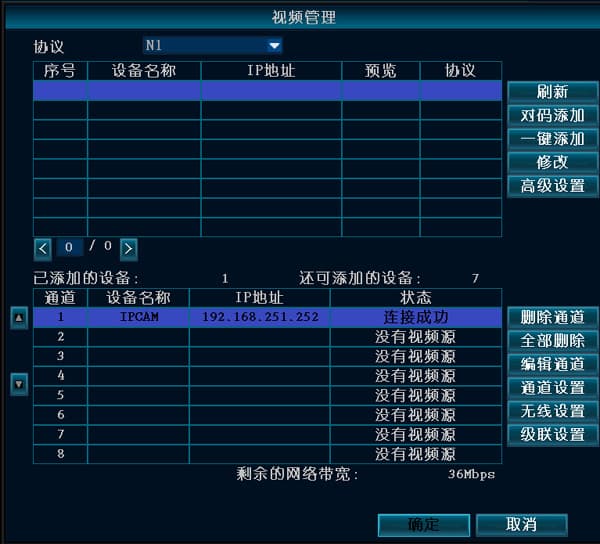
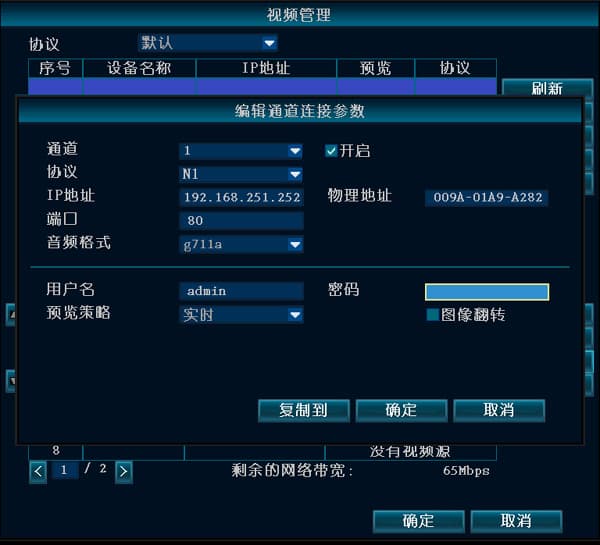
- Go to Video Management → Edit Channel, re-enter the username and password, then power off and restart the IPC.
- If the steps above do not work, contact technical support for assistance.
In multi-screen view the image is blurry, but in single-screen view it is clear
- In multi-screen view, a professional NVR connects to the IPC's sub stream, with a resolution below D1; in single-screen view it connects to the main stream, generally at a resolution of 720P or above, depending on the NVR's maximum supported resolution.
- The main stream and the sub stream differ in resolution and bitrate, so the image quality differs.
When the NVR connects to a third-party IPC, the screen goes black or the channel drops offline
- Confirm whether there is an IP or MAC conflict.
- Use the ping command to check for network latency or dropped connections; if present, the cabling may be faulty.
- Update the IPC firmware version and the NVR firmware version.
- If none of the above works, contact technical support.
The NVR cannot find the IPC's IP via the ONVIF protocol
- Connect the NVR by cable to a switch or router, and connect the IPC by network cable to the same router or switch.
- Connecting across multiple routers or network bridges is not supported; switches are not limited.
- Confirm whether the IPC supports the ONVIF protocol.
- Change the IPC's and NVR's IP addresses to the same subnet and the same gateway address.
- Ask the camera manufacturer for the IPC's ONVIF port, username, and password. Right-click → Video Management → Edit Channel, enter the IP, port, username, and password you obtained, then click to enable it.
- Contact technical support for assistance.
After adding a Hikvision IPC to the NVR and adding/deleting it multiple times, it reports a verification failure
- Hikvision hardware was fully upgraded after April 2015; on first use the device must be activated and a new password set.
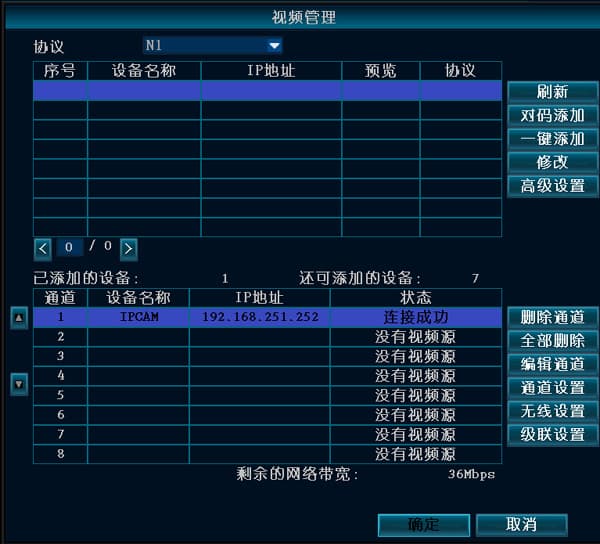
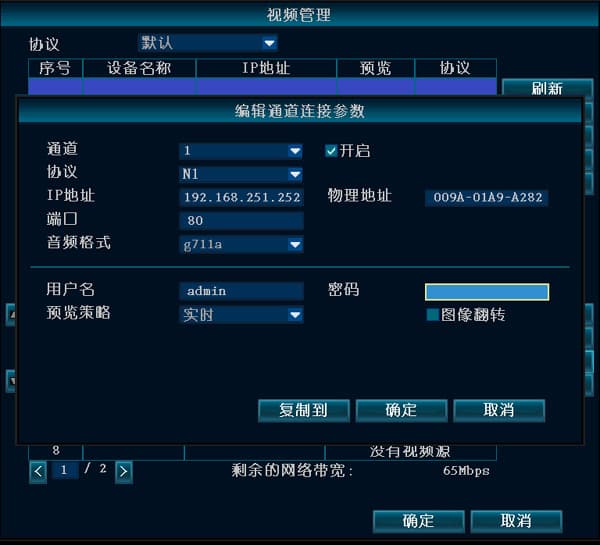
- Right-click and select Video Management → select the Hikvision IPC → Edit Channel, then re-enter the username and password. Power off and restart the Hikvision IPC.
Adding a Dahua camera to the NVR finds the IP but reports "not logged in"
Log in to the Dahua camera from a PC web browser, then go to Network Settings → Connection → ONVIF and try disabling login verification.